Lock and key chest
Introduction
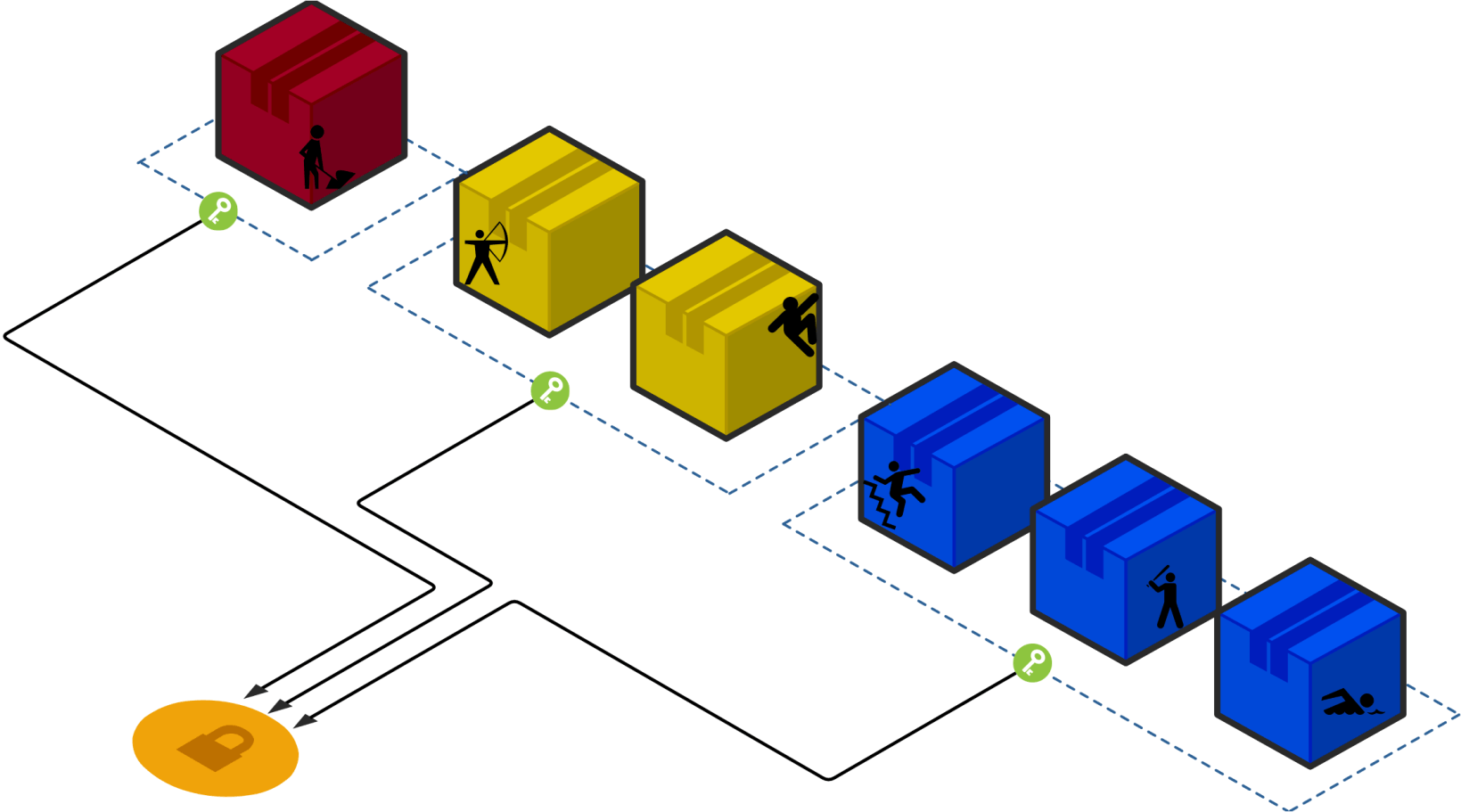
A Lock is a component that requires one or multiple key to get opened. Those keys can be obtained from key chests.
This component is particularly useful to link puzzle areas together. Indeed, the key chest can be placed in a different puzzle area than the area containing the lock.
It is also used for creating bonus content since all keys are not always required to open a lock. Only one key of each required colors is needed to open a lock.
How to place a Lock
- Open Lasers-Enigma main shortcut bar by typing the
/laserscommand. - Aim for the block on which you want to place the component. This can be on the floor, ceiling, or wall. Then right-click with the "place component" button in hand.
- Now that the component is placed, the Lock edition shortcut bar will open and you will be able to edit the component.
How to place a key chest
- If the Lock edition shortcut bar is not open already, simply right-click on the lock to open it.
- Right-click the "Create a key chest" item.
- Aim for the block on which you want to place the key chest and then right-click the "Place a new key chest" item. The place of the key chest can be in a different puzzle area than the one containing the lock.
- Done! you may exit by right-clicking the "Cancel" item in your hotbar.
How to edit a Lock
If the Lock edition shortcut bar is not open already, simply right-click on the lock to open it.
Via Shortcut Bar
From the Lock edition shortcut bar you have several possibilities:
- You can create a key chest for the lock.
- You can teleport yourself to one of the existing key chest of this lock.
- You can also open the Component configuration to have more possibilities.
Via Component Configuration menu
In the component configuration menu, you will have access to what we summed up before, and 2 other features:
- You can delete the keys that are linked to the lock for yourself.
- You can delete the keys linked to the lock for all the players.
- You can delete every key chest linked to the lock.
How to edit a Key Chest
If the Key Chest edition shortcut bar is not open already, simply right-click on the key chest to open it.
Via Shortcut Bar
From the Key chest edition shortcut bar you have several possibilities:
-
You can set the key color. This choice is not just aesthetic. This allows the creation of optional and mandatory keys.
Let's take an example: We've created a lock and placed 3 key chests. One of these key chest is white. The other 2 are red. In this case, the player will inevitably need to open the single white key chest. However, only one of the two red key chests is needed.
-
You can teleport to the lock linked to this key chest.
-
You can also open the Component configuration.
Via Component Configuration menu
In the component configuration menu, you will only have access to what we summed up before.
Interactions
Player interaction
The player can right-click a key chest to get the key and right-click a lock with the respective key for that lock to open it. The keys have no physical existence. This means the keys obtained by a players are not saved in the player inventory. If the player right-click the lock without the required keys a message will inform the player of the requirements left.
The conditions that will clear the keys obtained by a player can be customized in the configuration file. This customization will be applied on every lock in the server and not for a specific lock or puzzle area. The keys can be kept by players indefinitely or be cleared:
- When the player opens the lock (by setting
opening_locks_consumes_keys=true). - When the player exits the world (by setting
clear_keys_on_exit_world=true). - When the player dies (by setting
clear_keys_on_death=true). - When the player quit the service (by setting
clear_keys_on_quit=true).
When setting those conditions, think twice about the fact a lock will be reset to its close state when the player leaves the puzzle area.
Other components interactions
The key chest has no interaction with other components except the lock it is linked to.
The lock can activate or deactivate other components. Indeed, the number of opened lock in an area can be used as a Condition for other conditional components activation.
Laser interaction
A laser cannot pass through a lock or a key chest. Whether or not a lock or a key chest is hit by a laser has no effect on this component.