Automatic reset area
Introduction
In Lasers-Enigma, every puzzle must be infinitely replayable. Without proper reset mechanisms, a puzzle loses its initial state, making it impossible to maintain and leading to confusion for both players and server administrators.
Built-in Automatic Reset
By default, Lasers-Enigma includes an automatic reset system. Actions performed by the puzzle creator are saved, while player actions remain temporary. A player is considered the puzzle creator when they have the Lasers-Enigma menu open.
A reset occurs when no players are present in the puzzle area (or only players in spectator mode remain). During this reset:
- Components that can hold mirrors return to their initial state (whether empty or containing a mirror).
- Components revert to their initial orientation as defined by the puzzle creator.
⚠️ Warning: Even a component that was initially empty still has a set orientation, which determines the orientation of a mirror when inserted by a player.
- Gravitational spheres restore to their initial size.
- Burnable blocks that were destroyed reappear.
Resetting a puzzle on demand
Players can reset the puzzle they are currently solving, without leaving the area, in two ways:
- the
/lasers area resetcommand, or - the reset item, handed to every player in their last hotbar slot when they enter a puzzle (and removed when they leave the area or rejoin the server outside any puzzle).
A reset puts the puzzle back to its initial state — exactly like the built-in automatic reset above — and teleports the player back to the area checkpoint. The current run is abandoned (it is not recorded as a victory).
An area checkpoint must be defined and the area must be active. A force-activated area cannot be reset.
Avoiding accidental resets. A single click on the reset item never resets. It asks you, right away in chat, to click a second time within 10 seconds — that second click performs the reset.
Several players in the same puzzle. When two or more players share a puzzle, a reset is not immediate: every non-spectator player is invited (with a counter such as "1/3 players have requested the level reset") and the reset only happens once everyone has accepted — by running the command or clicking the item. The request is cancelled if a player enters, leaves, or toggles spectator mode, and it expires after 30 seconds.
How it unfolds. During a manual reset every participant is switched to spectator while the
puzzle tears down, and stays there for a short pause — area_reset_spectator_ticks in the config,
default 40 ticks (2 seconds) — before being placed back at the checkpoint in their original game
mode. That pause is what gives the puzzle's own reset contraptions (see the manual-reset section
below) the time to run: they fire when the area empties, and without the pause no lever or command
block could ever observe the redstone edge.
You are held at your position for the duration of that pause — a spectator otherwise flies through walls, and a puzzle being rebuilt is not meant to be read. Looking around is unaffected.
Configuration. The reset item cannot be moved, dropped or deleted, and it is never given while a player is in edition mode. Config options: area_reset_item_enabled (give the item on area entry — the command stays available either way), area_reset_item_slot (which hotbar slot it goes to, default 8) and area_reset_spectator_ticks (the spectator pause above; 0 restores the old instantaneous reset). On the public server the item is also suppressed inside hub rooms.
Manual Reset with Conditional Redstone Block, Command Blocks and Structure Blocks
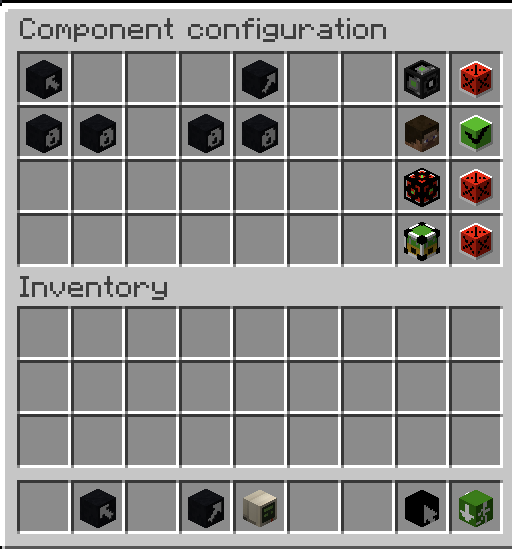
If your puzzle includes mechanics beyond those provided by Lasers-Enigma, you will need to implement a manual reset. This can be achieved using a conditional redstone block, configured to activate when there are no players are in the puzzle area. This ensures the reset occurs at the appropriate time.
Add a legend.
The conditional redstone block can then be linked to command blocks or structure blocks to handle specific reset actions.
Command blocks and structure blocks can be obtained using:
/minecraft:give <your_player_name> command_block
/minecraft:give <your_player_name> structure_block
ℹ️ Note: Command syntax may vary depending on your Minecraft version.
You can draw inspiration from the following examples.
Resetting a Lever to Its Initial Position
Configure a command block as impulse, unconditional, and needs redstone:
/minecraft:setblock ~10 ~-5 ~11 lever[powered=false,face=floor,facing=north] replace
ℹ️ Notes:
- This example uses the
setblockcommand; the same result can be achieved using theblockdatacommand.- Using relative coordinates is important to allow for future copy/paste of puzzle areas.
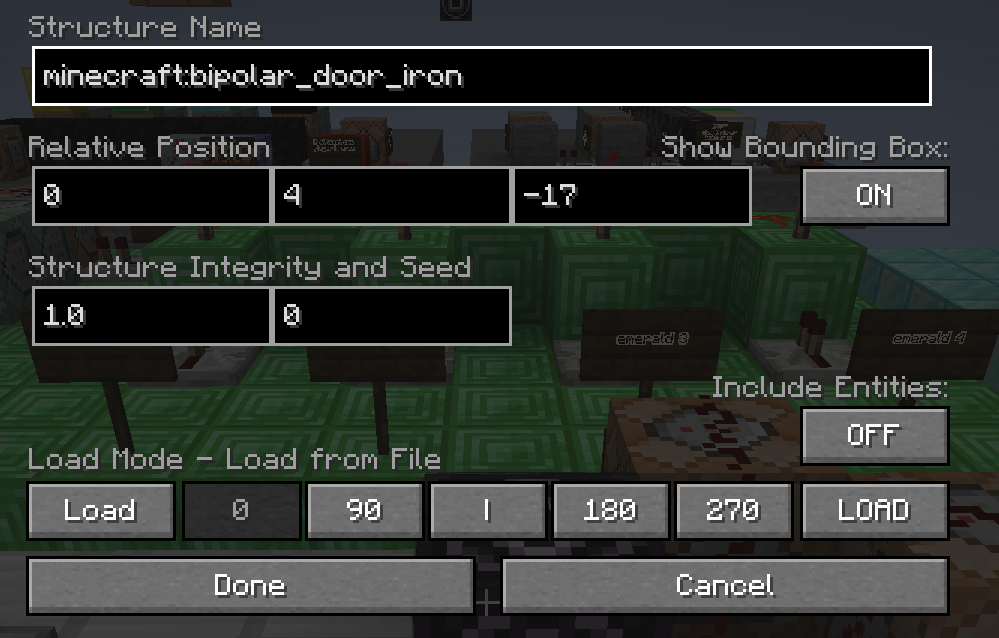
Regenerating a Set of Blocks Using a Structure Block
Add a legend.
ℹ️ Note: This guide does not cover the basics of structure blocks. It is strongly recommended to watch a tutorial video on structure blocks.
Removing a Redstone Block That Tracks Puzzle Progress
/minecraft:setblock ~3 ~0 ~2 air replace
You can also remove multiple blocks at once:
/minecraft:fill ~-2 ~0 ~0 ~-8 ~0 ~0 minecraft:air replace
ℹ️ Note: Using relative coordinates is important to allow for future copy/paste of puzzle areas.
Refilling a Chest by First Destroying and Then Restoring It
-
Delete the chest:
/minecraft:setblock ~15 ~10 ~2 air replace -
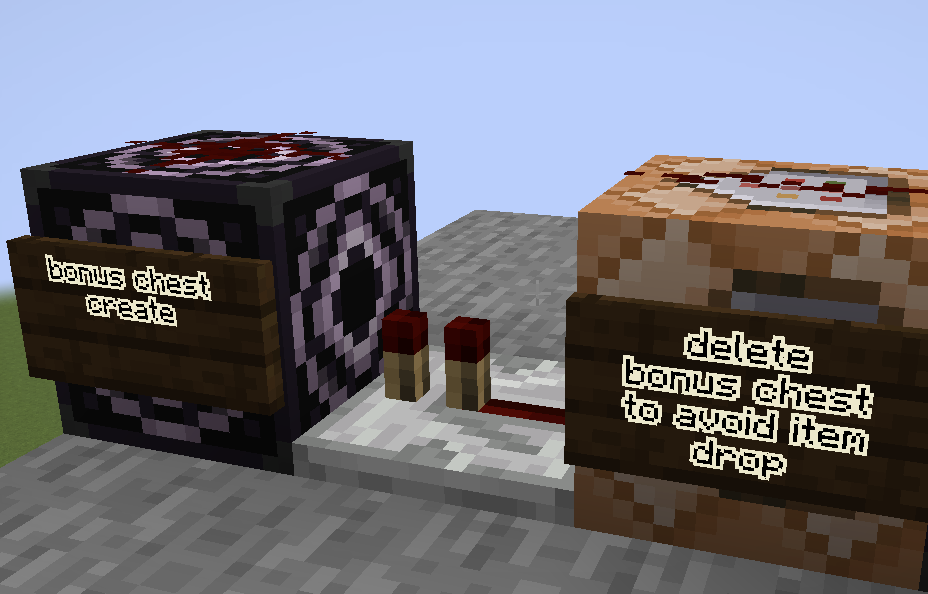
Use a repeater and a structure to recreate the chest one tick later:
Add a legend.
ℹ️ Notes:
- Without the prior destruction, the structure block will drop the chest's items on the ground before replacing it.
- Using relative coordinates is important to allow for future copy/paste of puzzle areas.
Using Mobs or Other Entities
- First, kill the entity:
/minecraft:kill @e[type=zombie,name=puzzle13_zombi,distance=..30]
- Then summon it again:
/minecraft:summon zombie ~-2 ~5 ~3 {IsBaby:1,CustomName:'[{"text":"puzzle13_zombie"}]',HasVisualFire:1b,PersistenceRequired:1b}
ℹ️ Notes:
- Commands like
/teleportor/killare often overridden by plugins (such as Essentials). To avoid conflicts, always prefix them withminecraft:to ensure the native Minecraft command is used instead.- Never use
/kill @ewithout specifying parameters! This command can wipe out players, Lasers-Enigma components (which use armor stands), and even item frames. Always include a maximum distance and a specific entity type to prevent unintended destruction.- Many only command generators can help you write your summon commands.
- If your puzzle involves multiple similar entities, ensure each one has a unique name or tag to avoid unintended resets.
Allow Players to Destroy Specific Blocks in Adventure Mode using a Specific Item
In Adventure mode, players cannot destroy blocks by default. To allow block destruction with a specific item, follow these steps :
- Create an item that can destroy the block:
/give @p minecraft:iron_pickaxe 1 0 {CanDestroy:["minecraft:cobblestone"]}
- Place the item in a chest.
- Save the chest's contents using a structure block. Use the same or another structure block to save the initial cobblestone blocks.
- Set up your manual reset:
- As explained above, reset the chest contents by:
- Deleting the chest with a command block.
- Recreating the prefilled chest one tick later with a structure block.
- Use the same or another structure block to reset the cobblestone blocks area.
- As explained above, reset the chest contents by:
Clearing Dropped Items to Prevent Lag
If your puzzle involves entities or dropped items, it is advisable (and good practice) to remove them during the reset to prevent performance issues.
You can use the following command to clear all dropped items within a certain radius:
/minecraft:kill @e[type=item,distance=..30]
⚠️ Warning: Ensure the radius is set correctly to avoid deleting items outside the puzzle area.